
Fixing SwiftUI Performance Issues with AI-Assisted Debugging
My app felt sluggish. Scrolling wasn’t smooth, and I could see occasional freezes. When I opened Instruments, the Hangs track told the story: 14 micro-hangs in 38 seconds. That’s almost one hang every 3 seconds.
Instead of manually digging through traces, I tried something different. I asked Claude Code to analyze my Instruments trace file directly. What followed was a systematic debugging session that not only fixed the issues but taught me patterns I’ll watch for in every SwiftUI app going forward.
The Starting Point
Here’s what Instruments showed before any fixes:
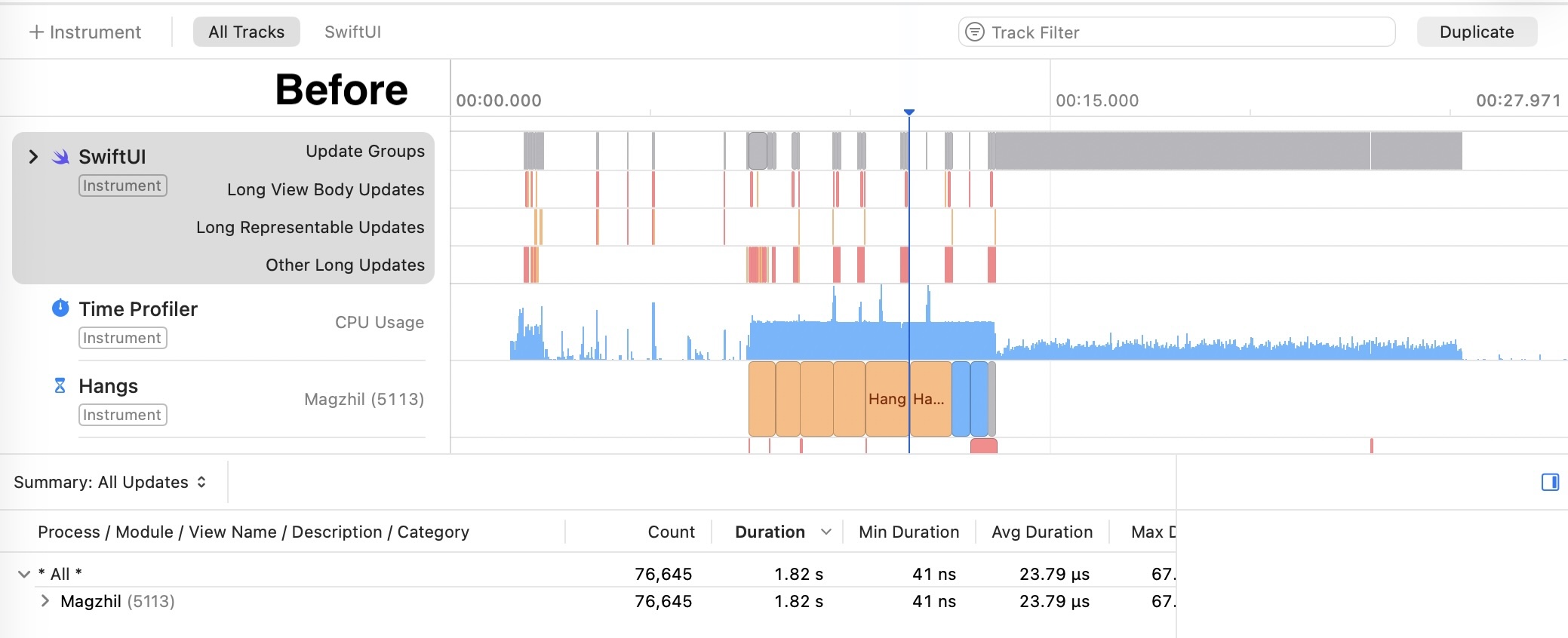
The SwiftUI template in Instruments revealed:
- 76,645 total SwiftUI updates in 28 seconds
- 1.82 seconds of total update duration
- Multiple visible “Hang” blocks in the Hangs track
- Red markers indicating “Long View Body Updates”
AI-Assisted Analysis
Claude Code can read Instruments trace files programmatically using xcrun xctrace export. This extracts hang data, SwiftUI update counts, and timing information into XML that can be analyzed without clicking through the Instruments UI.
xcrun xctrace export --input trace.trace \
  --xpath '//trace-toc[1]/run[1]/data[1]/table[9]' \
  --output hangs.xml
From the trace analysis, we identified five root causes.
Root Cause 1: @StateObject for Shared Singletons
Almost every view in my app had this pattern:
// WRONG
@StateObject private var themeManager = ThemeManager.shared
This was in 30+ views. The problem? @StateObject is meant for objects the view owns and creates. For shared singletons, every view was independently subscribing to changes, causing cascading redraws across the entire view hierarchy.
The fix:
// RIGHT
@ObservedObject private var themeManager = ThemeManager.shared
@ObservedObject tells SwiftUI “I’m observing this, but I don’t own it.” The subscription is shared, not duplicated.
Root Cause 2: DateFormatter in Computed Properties
My timeline view grouped items by date:
// WRONG - runs on EVERY body evaluation
private var groupedItems: [String: [Item]] {
    let formatter = DateFormatter()  // Created every render!
    formatter.dateStyle = .medium
    // ... grouping logic using formatter
}
DateFormatter is expensive to create. And computed properties in SwiftUI views run every time body is evaluated. With frequent updates, this was creating hundreds of formatters per second.
The fix:
// Cache the result in @State
@State private var cachedSections: [TimelineSection] = []

var body: some View {
    // Use cachedSections instead of computed property
}
.task(id: items.count) {
    cachedSections = Self.groupItemsIntoSections(items)
}

// Static method with formatter created once
private static func groupItemsIntoSections(_ items: [Item]) -> [TimelineSection] {
    let formatter = DateFormatter()
    formatter.dateStyle = .medium
    // ... grouping logic
}
Root Cause 3: VStack Instead of LazyVStack
// WRONG - renders ALL items immediately
ScrollView {
    VStack(spacing: 24) {
        ForEach(items) { item in
            ItemRow(item: item)
        }
    }
}
With 100+ items, VStack forces SwiftUI to render every single row upfront, even those far off-screen.
The fix:
// RIGHT - only renders visible items
ScrollView {
    LazyVStack(spacing: 24) {
        ForEach(items) { item in
            ItemRow(item: item)
        }
    }
}
Root Cause 4: Unstable ForEach Identity
// WRONG - String identity is unstable when array changes
ForEach(item.tags, id: \.self) { tag in
    TagView(tag: tag)
}
When using id: \.self with strings, SwiftUI struggles to track identity if the array is reordered or modified. This causes unnecessary view recreation.
The fix:
// RIGHT - stable identity using offset
ForEach(Array(item.tags.enumerated()), id: \.offset) { _, tag in
    TagView(tag: tag)
}
Root Cause 5: Array Mutation During Scroll
In my Wishlist screen, voting on an item would immediately re-sort the array:
// WRONG - sorting during user interaction
func voteFor(row: RowData) {
    rows[index].votes += 1
    rows.sort { $0.votes > $1.votes }  // Crash risk!
}
Mutating an array while SwiftUI is diffing the view hierarchy (during scroll) can cause crashes or visual glitches.
The fix:
// RIGHT - defer the sort
func voteFor(row: RowData) {
    rows[index].votes += 1

    DispatchQueue.main.asyncAfter(deadline: .now() + 0.3) { [weak self] in
        self?.rows.sort { $0.votes > $1.votes }
    }
}
The Result
After applying all fixes:
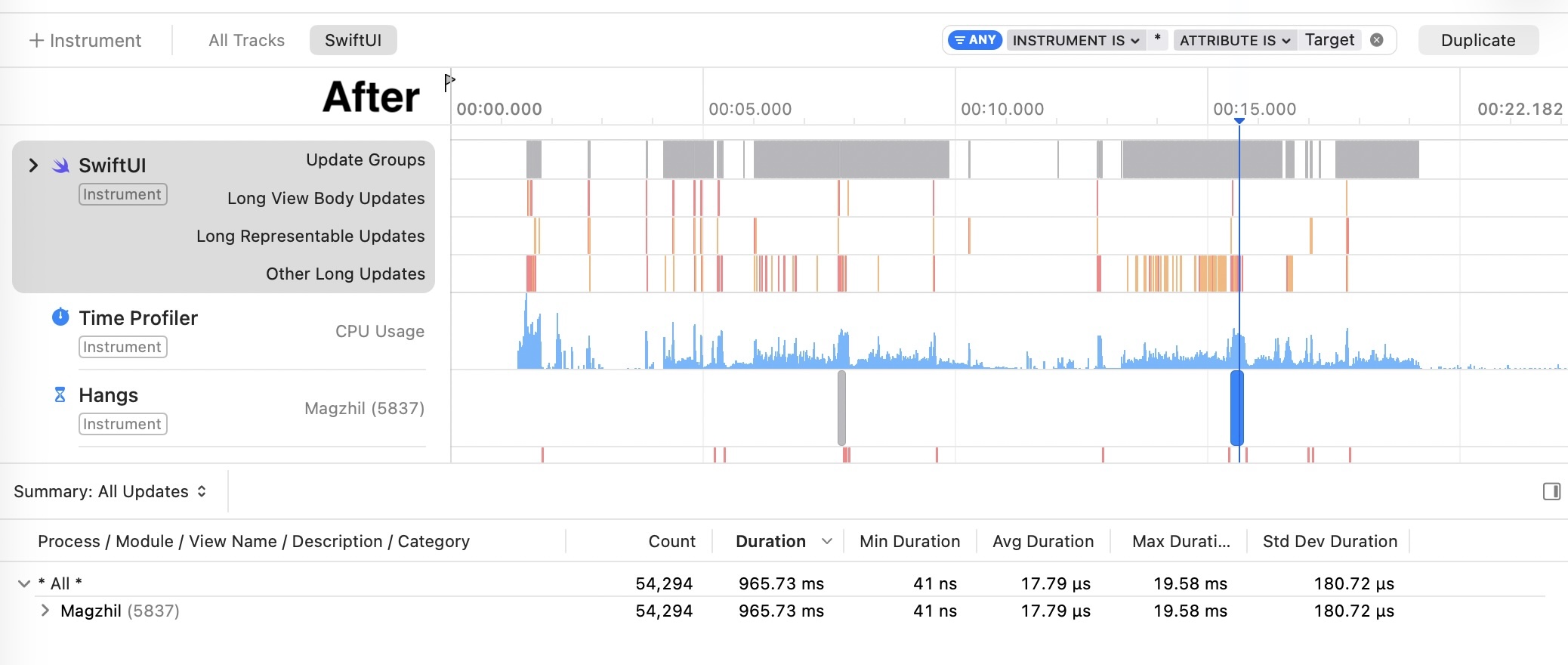
| Metric | Before | After | Improvement |
|---|---|---|---|
| SwiftUI Updates | 76,645 | 54,294 | 29% fewer |
| Total Duration | 1.82s | 965ms | 47% faster |
| Visible Hangs | Multiple | Nearly clean | Significant |
The Hangs track went from showing multiple orange blocks to being nearly clean. The app feels noticeably smoother.
Lessons Learned
Using AI to fix code is fast, but it doesn’t teach you anything unless you ask why. Here are the patterns I’ll now watch for in every SwiftUI project:
Quick Checklist
| Pattern | Problem | Fix |
|---|---|---|
@StateObject with .shared |
Duplicate subscriptions | Use @ObservedObject |
DateFormatter() in computed property |
Created every render | Cache in @State, compute in .task |
VStack with ForEach of many items |
Eager rendering | Use LazyVStack |
ForEach with id: \.self on strings |
Unstable identity | Use .enumerated() with id: \.offset |
| Array mutation during scroll | Crashes, glitches | Defer with asyncAfter |
When to Run Instruments
Don’t wait until the app feels slow. Run the SwiftUI template in Instruments:
- After implementing a new list view
- When adding new data sources
- Before any release
- When you see “View body took too long” warnings in Xcode
Using AI as a Learning Partner
The real value of AI-assisted debugging isn’t the fix—it’s the explanation. Instead of asking “fix this,” ask:
- “Why is this causing a hang?”
- “Explain what’s wrong with this pattern”
- “What should I look for in this Instruments trace?”
That way you build intuition, not dependency.
Summary
SwiftUI performance issues often come from a few common patterns: wrong property wrappers, expensive computed properties, eager view loading, and unstable identities. Tools like Instruments show you where the problems are; understanding why they happen helps you avoid them in the first place.
The code that runs on every render must be cheap. Everything else should be cached and computed in the background.
Need iOS Help?
I help developers with:
- Bug fixes & debugging
- App Store rejections
- Code review & mentoring
- Claude Code training for iOS
10+ years iOS • 10+ published apps • 11,000+ students trained