
How to Handle HealthKit Permission Denial Gracefully
About 20% of users deny HealthKit permission when asked. If your app shows a “permission required” wall, you lose them immediately.
There’s a better way. Build fallbacks so your app works with reduced functionality instead of failing completely. This is called graceful degradation.
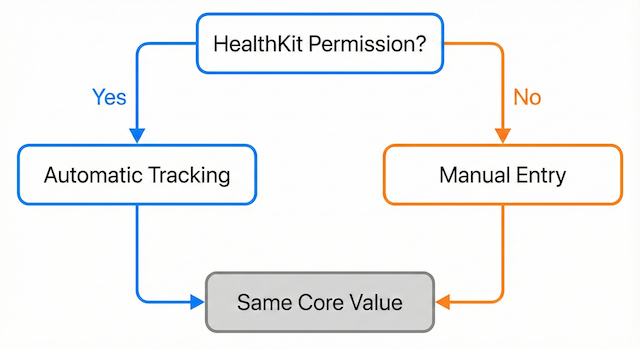 A flowchart showing two paths from “HealthKit Permission?” - “Yes” leads to “Automatic Tracking”, “No” leads to “Manual Entry”. Both paths converge to “Same Core Value”.
The Problem: All or Nothing
Many apps do this:
if hasHealthKitPermission {
    MainAppView()
} else {
    PermissionDeniedView() // Dead end
}
User sees a wall. User uninstalls.
The Fix: Provide an Alternative
Instead of blocking users, adapt based on what’s available:
enum DataSource {
    case healthKit
    case manual
}

class DataManager: ObservableObject {
    @Published var dataSource: DataSource = .healthKit

    func checkPermission() {
        healthKitManager.requestPermission { granted in
            self.dataSource = granted ? .healthKit : .manual
        }
    }
}
Now both paths lead somewhere useful.
Example: Sleep Tracker
A sleep tracking app could work like this:
With HealthKit: Automatic sleep data from Apple Watch or iPhone.
Without HealthKit: Manual entry form with bed time, wake time, and optional quality rating.
The core value (tracking sleep patterns over time) works either way. HealthKit just makes it automatic.
Tiered Features
Structure your app in tiers based on available permissions:
Basic (no HealthKit):
- Manual data entry
- Goals and reminders
- Basic statistics
Standard (partial HealthKit):
- Automatic tracking
- Quality scores
- Trends over time
Premium (full HealthKit):
- Heart rate analysis
- Activity correlation
- Health insights
Users without permissions get the basic tier. They can still use the app. When they’re ready, they can unlock more.
Gentle Upsells
Don’t nag about permissions. Show the value contextually:
“See how your daily steps affect your sleep. Enable activity tracking to unlock this feature.”
Users understand why the permission matters because they’re already interested in that feature.
When They Change Their Mind
If a user grants permission later, offer to import their manual entries. Keep their history intact.
The Principle
Before requiring any permission, ask yourself:
- What’s the core value of this app?
- Can users get that value without this permission?
- What’s a reasonable fallback?
For a sleep tracker, the core value is understanding sleep patterns. Manual entry works. HealthKit makes it easier, but it’s not required.
For a step counter, you probably do need motion permission. But you could still show goals, history from manual entry, or educational content.
Why This Matters
Users who deny permissions aren’t lost causes. They might:
- Be privacy-conscious but still interested
- Want to try the app before granting access
- Have had bad experiences with other apps
Give them a path forward. Some will grant permissions later after seeing the app’s value. Others will stay on manual mode and still leave good reviews.
Build for the users who say no. They might become your best advocates.
Need iOS Help?
I help developers with:
- Bug fixes & debugging
- App Store rejections
- Code review & mentoring
- Claude Code training for iOS
10+ years iOS • 10+ published apps • 11,000+ students trained