
Change the primary email address on LinkedIn
In this article we are going to see the steps required for changing the primary email address on LinkedIn account. If you have changed your job and want to update the LinkedIn account with the new email address then you can follow these simple steps.
Step 1: Login to your LinkedIn account.
Step 2: Navigate to top right corner and click Account & Settings option.
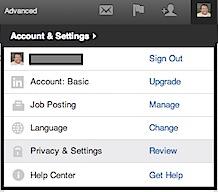
Step 3: In the Account & Settings drop down, select Privacy & Settings option.
Step 4: You will prompted to login with your LinkedIn credentials for authentication.
Step 5: Click Change/Add option available next to Primary Email.
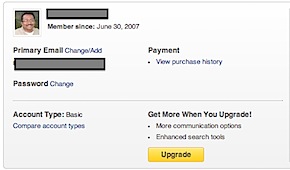
Step 6: In the Add & change email addresses screen, enter the new email address and click Add email address button.
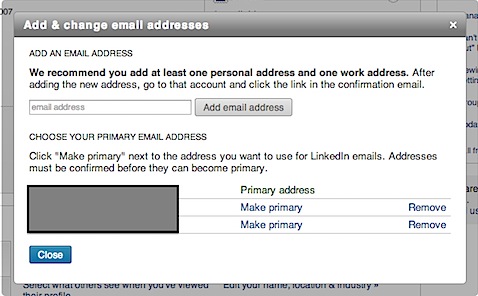
Then navigate to “CHOOSE YOUR PRIMARY EMAIL ADDRESS” section and click Make primary link to make the new email address as the primary email address for your LinkedIn account.
You might also be interested in:
Need iOS Help?
I help developers and founders with:
- New apps — idea to App Store
- Bug fixes, debugging & rescue
- App Store rejections
- Code review & mentoring
10+ years iOS • 10+ published apps • 11,000+ students trained